
Q Pro/Z Pro Series - How to Change/Remove a Password (Android 13)
Below is an article explaining how to change or remove a known password through the panel's settings on both the Q Pro and Z Pro Series.
Note: If your panel's firmware version is 1.1.46 or older, use the following steps to change the PIN on your Q Pro.
- Navigate into the panel's 'Settings'.

- Then, scroll down and select 'Security'.
- Select 'Screen lock'.

- Enter in the known PIN.

- Choose a new screen lock option.
- Choose 'None' if you're looking to remove it.

- Choose 'None' if you're looking to remove it.
- Follow instructions on the screen to complete the process.
Q Pro - How to Change/Remove a Password (Android 14)
Note: If your panel's firmware version is 1.4.11 or newer, use the following steps to change the PIN on your Q Pro.
- Navigate into the panel's 'Settings'.
- Scroll down to 'Security & privacy'.
- Select 'Device unlock'.
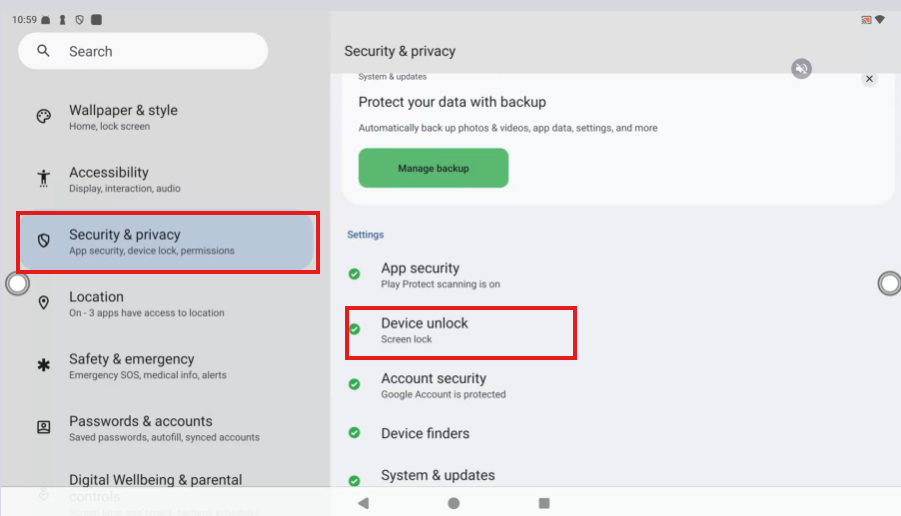
- Select 'Screen lock'.
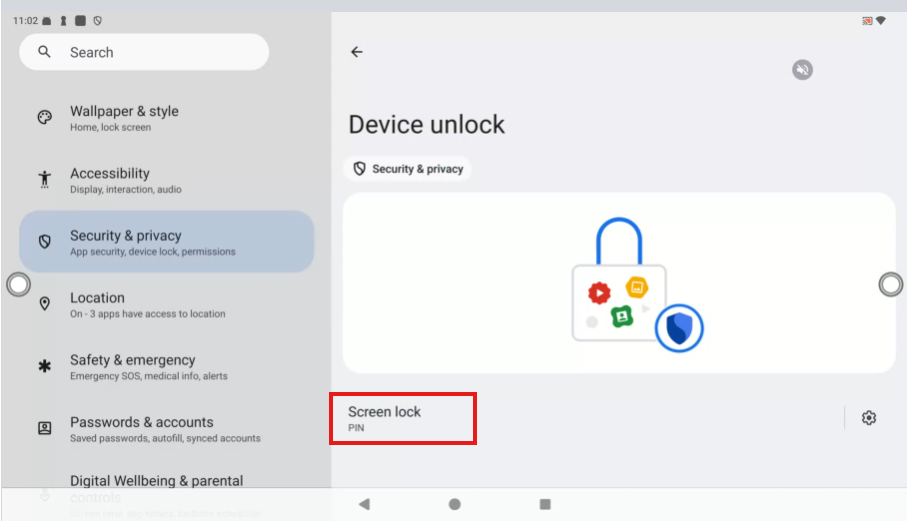
- Enter in the known PIN. If unknown, please contact Newline Tech Support.
- Choose a new lock screen option.
- Select 'None', if looking to remove the PIN.

- Select 'None', if looking to remove the PIN.
- Follow the remaining on screen prompts.
See the following related articles:
Subscribe to our Tech Notes - Newline Tech Notes and Firmware Updates (newline-interactive.com)
For additional questions, please contact support at 833-469-9520 or submit a ticket via our portal at: Submit a ticket : Newline Technical Services (freshdesk.com)