
Q Pro/Z Pro Series - How to Enable a QR Code Login
The article below will explain how you can enable a QR Code Login through the panel's settings on both your Q Pro and Z Pro Series.
Tip: This is a convenient way for teachers/users to log into their account without their PIN being revealed.- Navigate into the panel's 'Settings'.

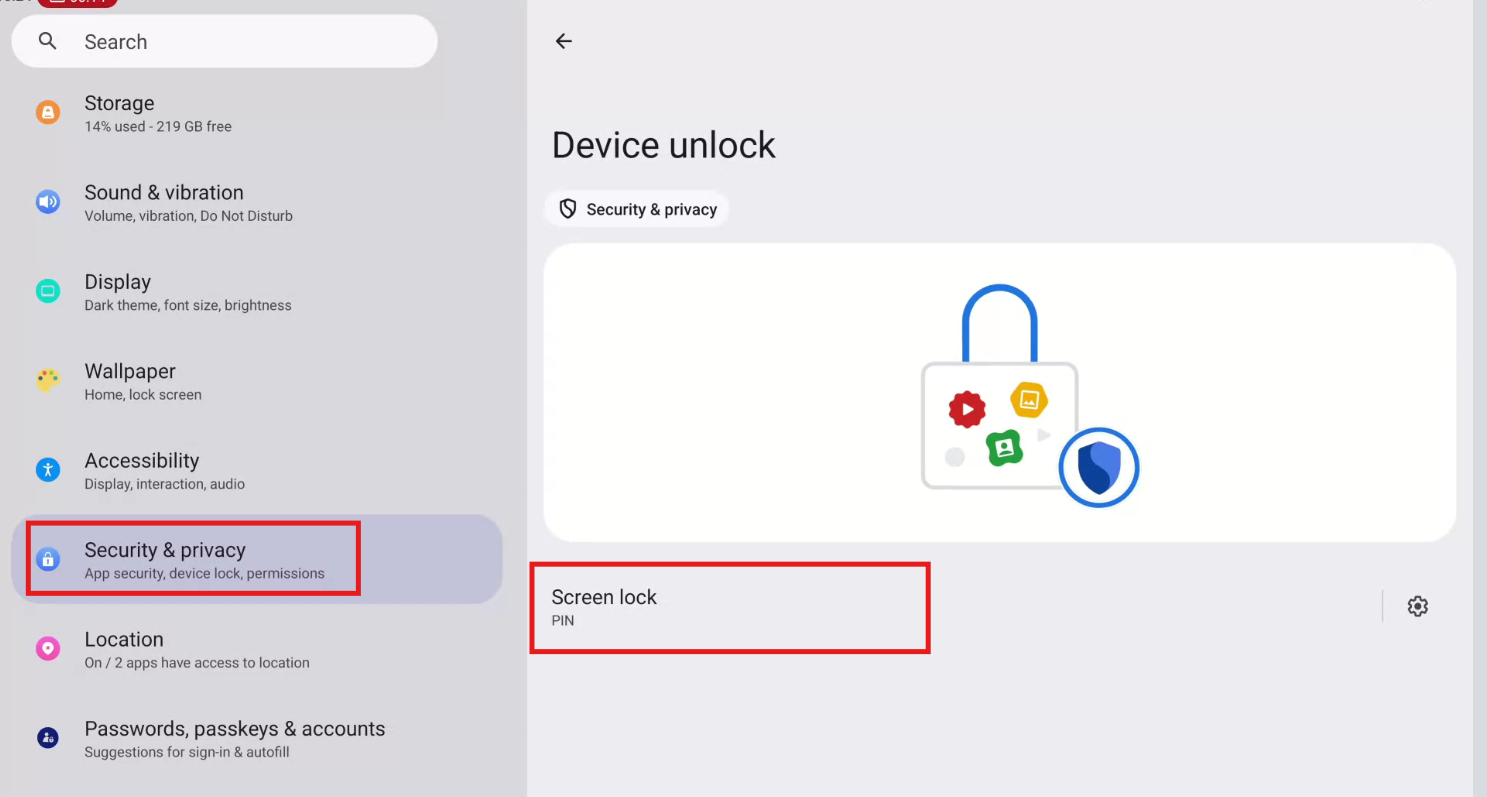
- Then, scroll down and select 'Security & Privacy'.
- Click Device Unlock.
- Click Screen Lock.
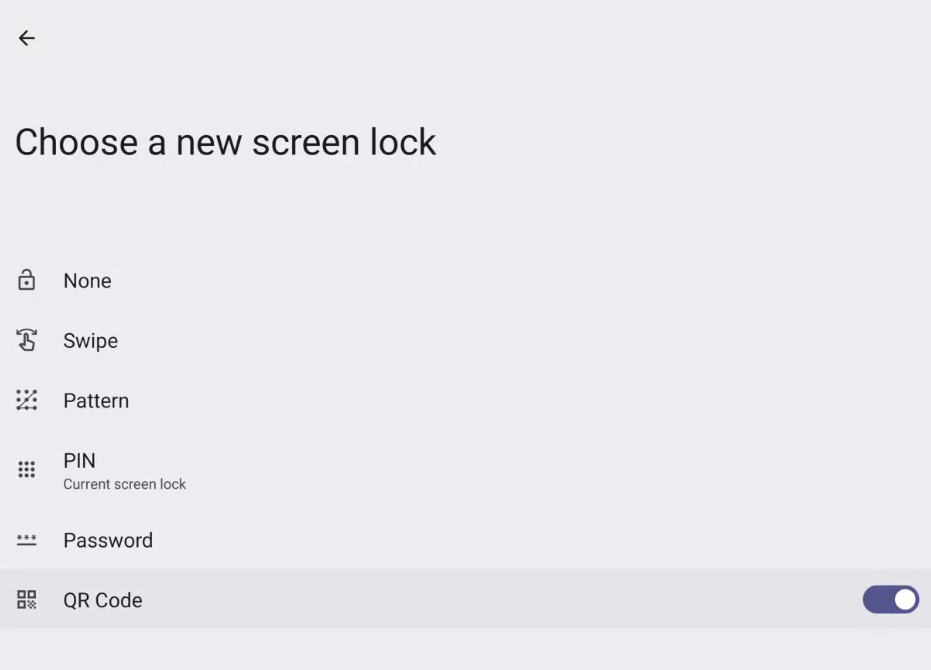
- Enter the PIN.
- Toggle 'QR Code' to the right to enable this setting.
See the following related articles:
Subscribe to our Tech Notes - Newline Tech Notes and Firmware Updates (newline-interactive.com)
For additional questions, please contact support at 833-469-9520 or submit a ticket via our portal at: Submit a ticket : Newline Technical Services (freshdesk.com)