
NDM Pro - Workflows
Workflows in NDM Pro allow administrators to combine multiple commands or actions into a single automated process. Instead of completing each task individually, you can create one workflow and deploy it to selected units or Smart Groups.
The steps below explain how to create and deploy a workflow to your units in NDM Pro.
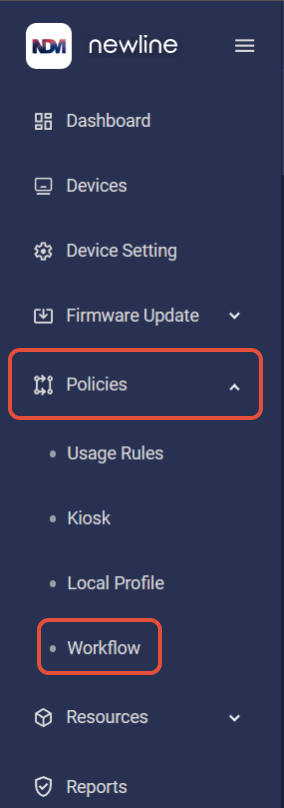
1. Under policies, click "Workflow".
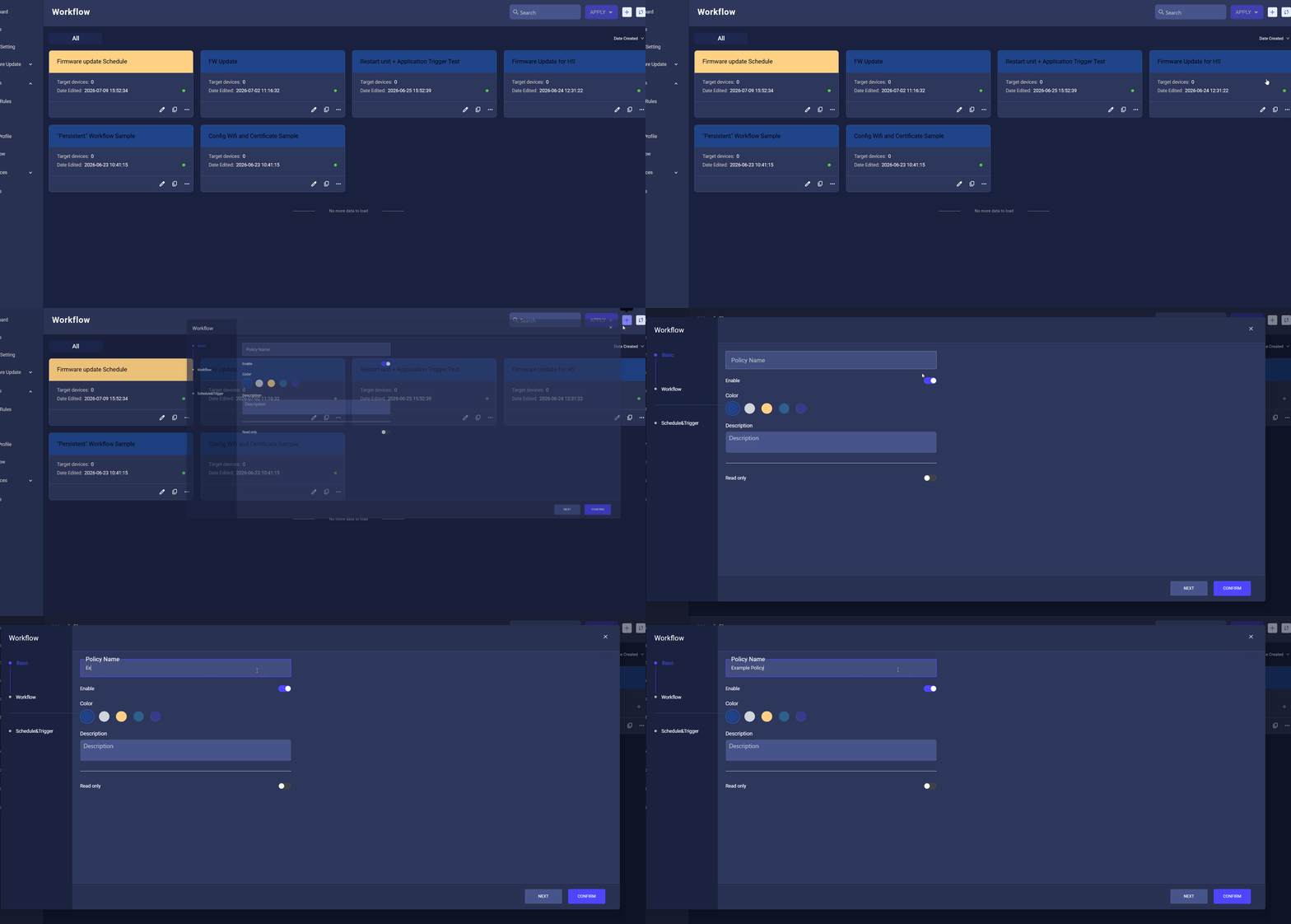
2. Press the "+" icon in the top right and enter a policy name.
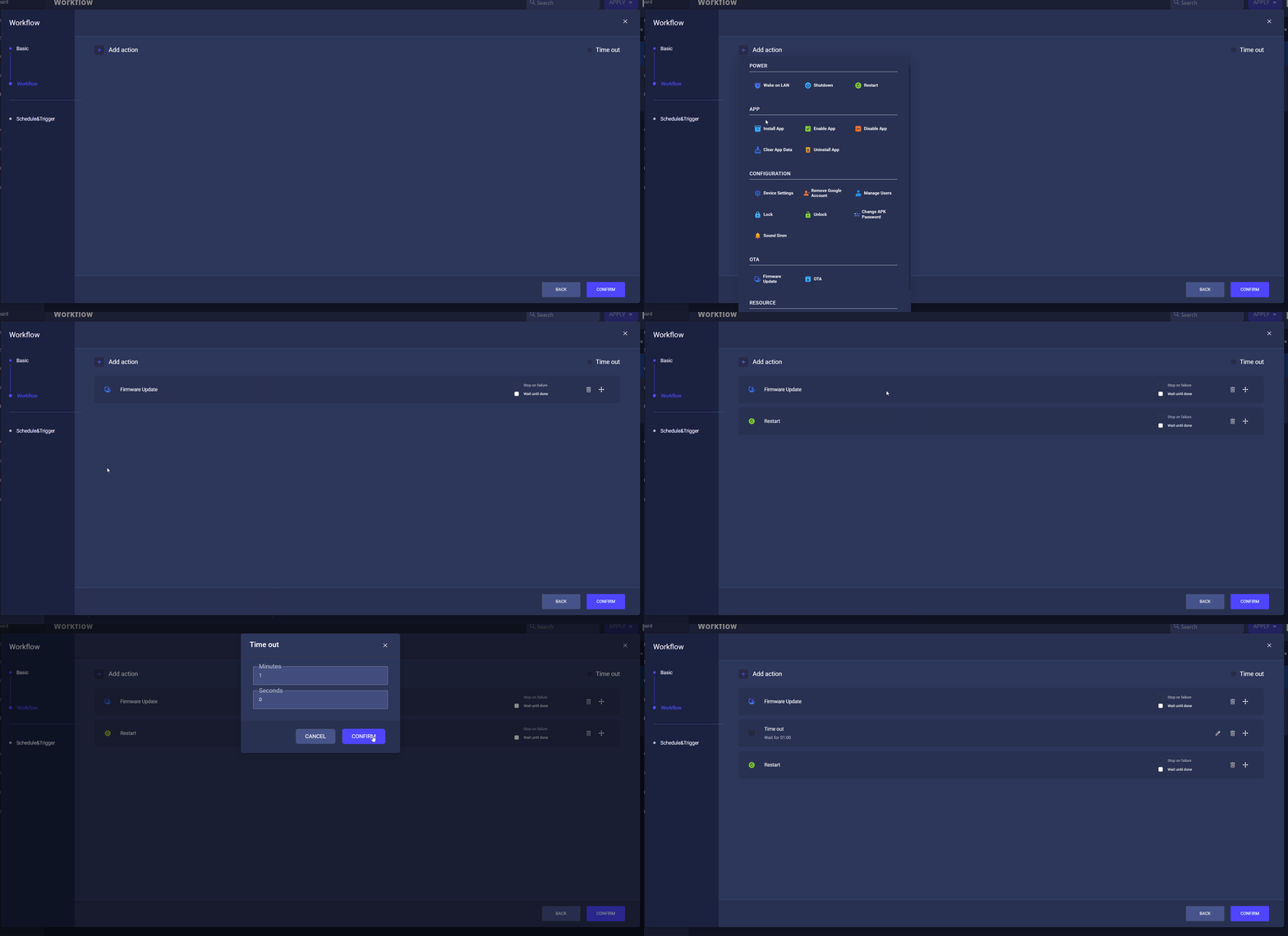
3. In the "Workflow" tab, you can select the action you wish to add, as well as move around the order.
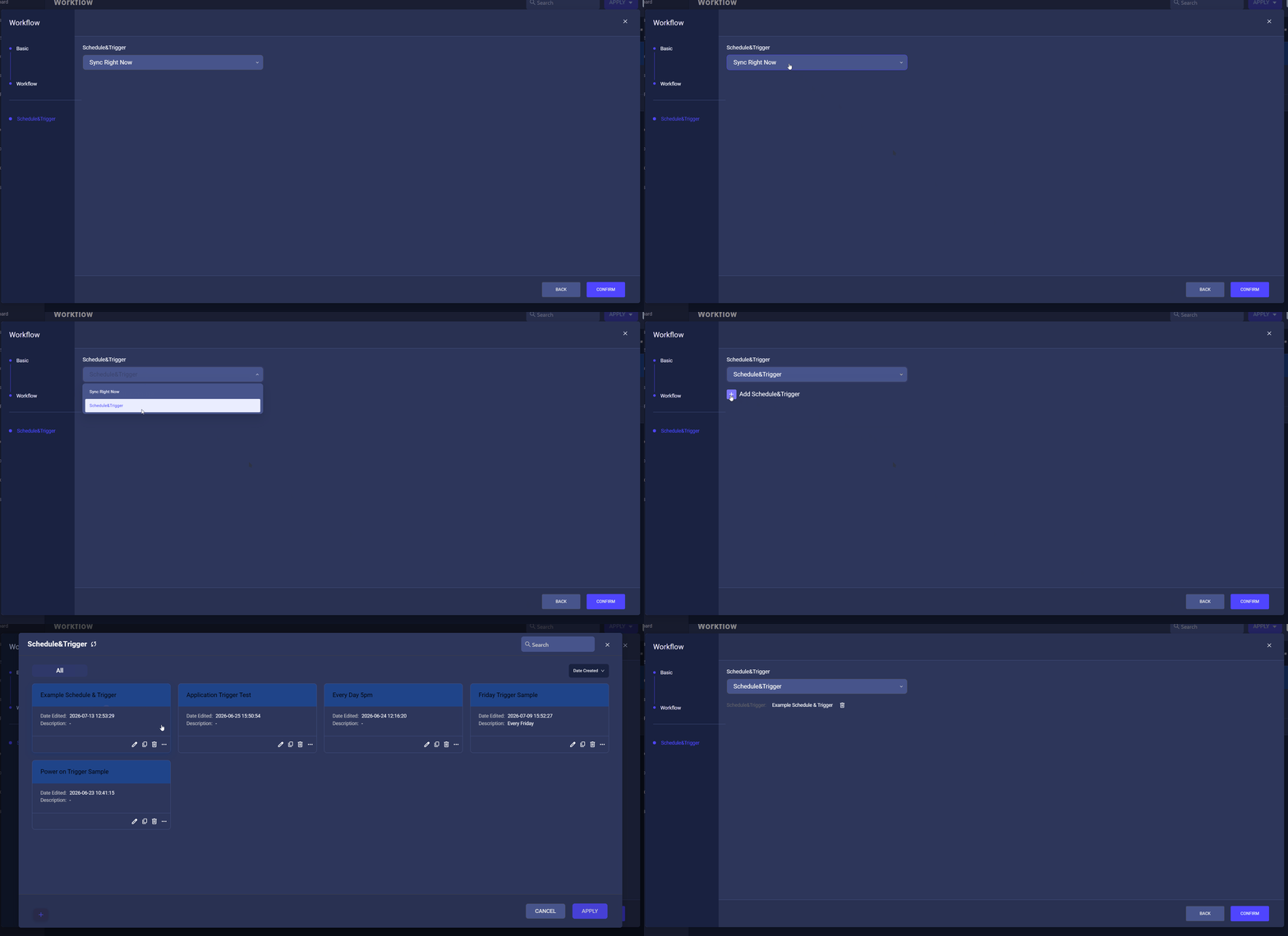
4. In the "Schedule & Trigger" tab, you can select the workflow to sync now or to follow a schedule & trigger.
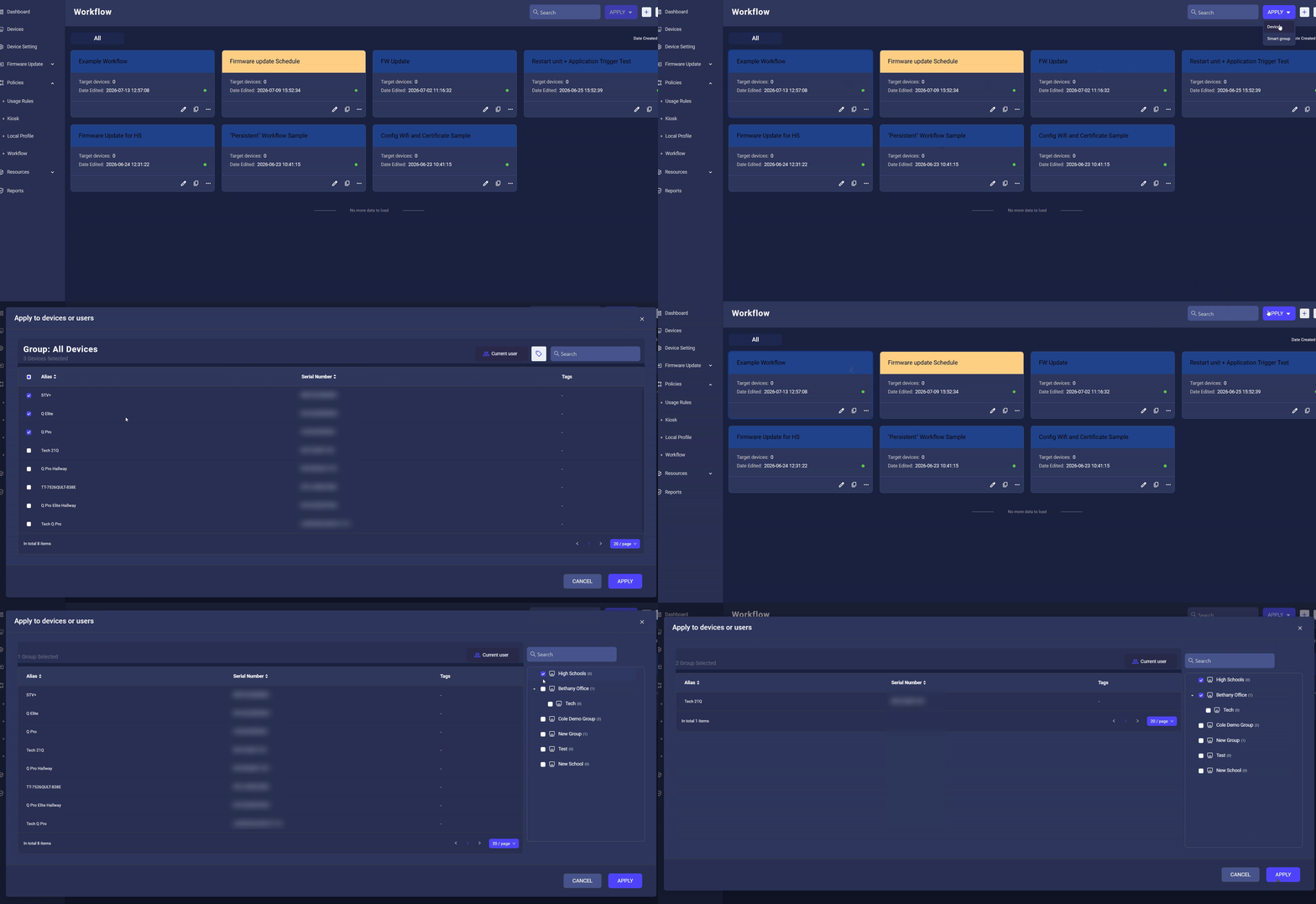
5. After creating the workflow, click the workflow module and press apply. Then either select the devices or Smart group to push out to. Specific user profiles can also be targeted.
Helpful tips:
Supported Actions:
| Category | Actions |
|---|---|
| Power | Restart / Power Off / Wake on LAN |
| Configuration | Remove Account / Manage Device Users / Lock / Unlock / Device Settings / Change APK Password / Sound Siren |
| App Management | Enable App / Disable App / Clear Apps Data / Uninstall App / Install App |
| Update | OTA / Firmware Update |
| Resource | Remote Execute / Message / Files |
Workflow Configuration Options:
Timeout: Each Action can have a timeout of up to 59 seconds
Maximum Actions: Up to 20 Actions can be added
Stop if Failed: Whether to stop the entire Workflow if a step fails
Wait for Completion: Whether to wait for each step to complete before executing the next
Subscribe to our Tech Notes - Newline Tech Notes and Firmware Updates (newline-interactive.com)
For additional questions, please contact support at 833-469-9520 or submit a ticket via our portal at: Submit a ticket : Newline Technical Services (freshdesk.com)