
NDM Pro - How to Create Groups
Creating a group is a helpful way to manage multiple panels in different locations or for different purposes. Groups allow you to apply apps and send commands to multiple devices at the same time.
There is no limit to the number of groups you can create in an account, and a device can belong to more than one group.
By default, there is a group called All. The “All” group is a master group containing all the devices enrolled in the account and is allowed to be viewed by the logged-in user.
How to Create a Group
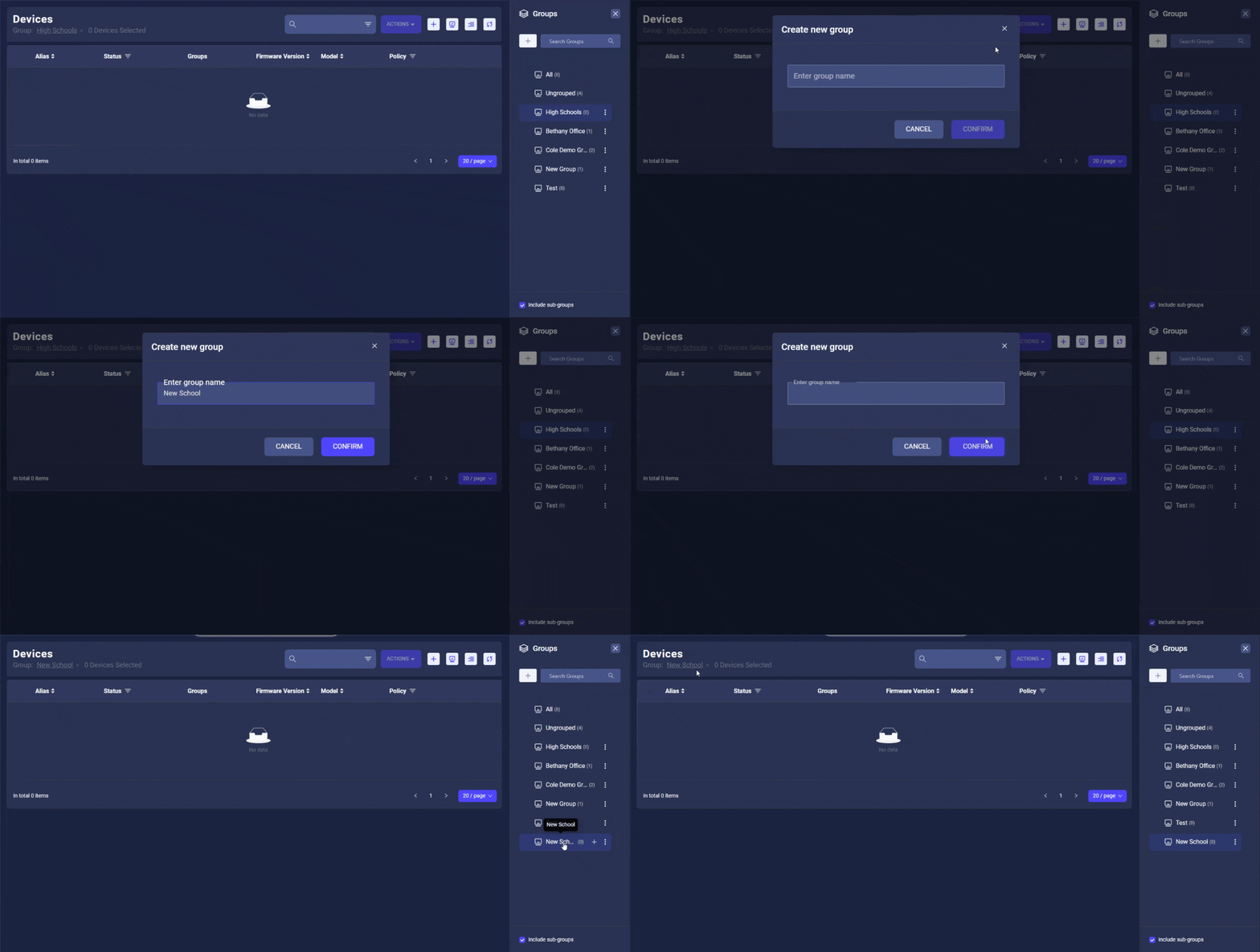
1. In the management portal, click on the Devices list tab.
2. Then select the plus icon under Groups.
3. Enter a group name, and click Confirm.
How to Create a Subgroup
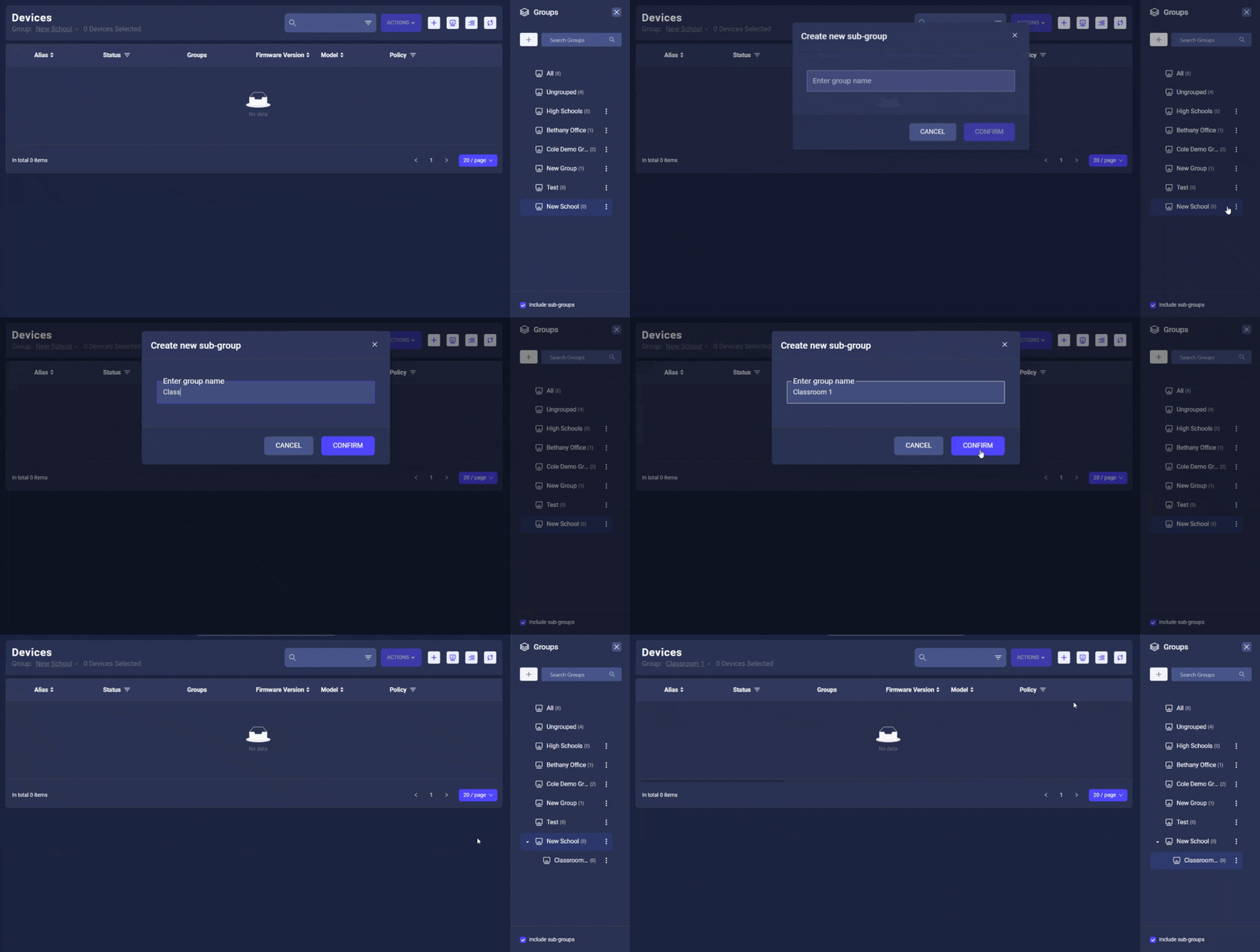
1. Select the group where the subgroup should be created.
2. Enter a name for the subgroup.
3. Confirm the subgroup.
Make sure " Include sub-groups" is checked
How to Apply Basic Commands to Groups
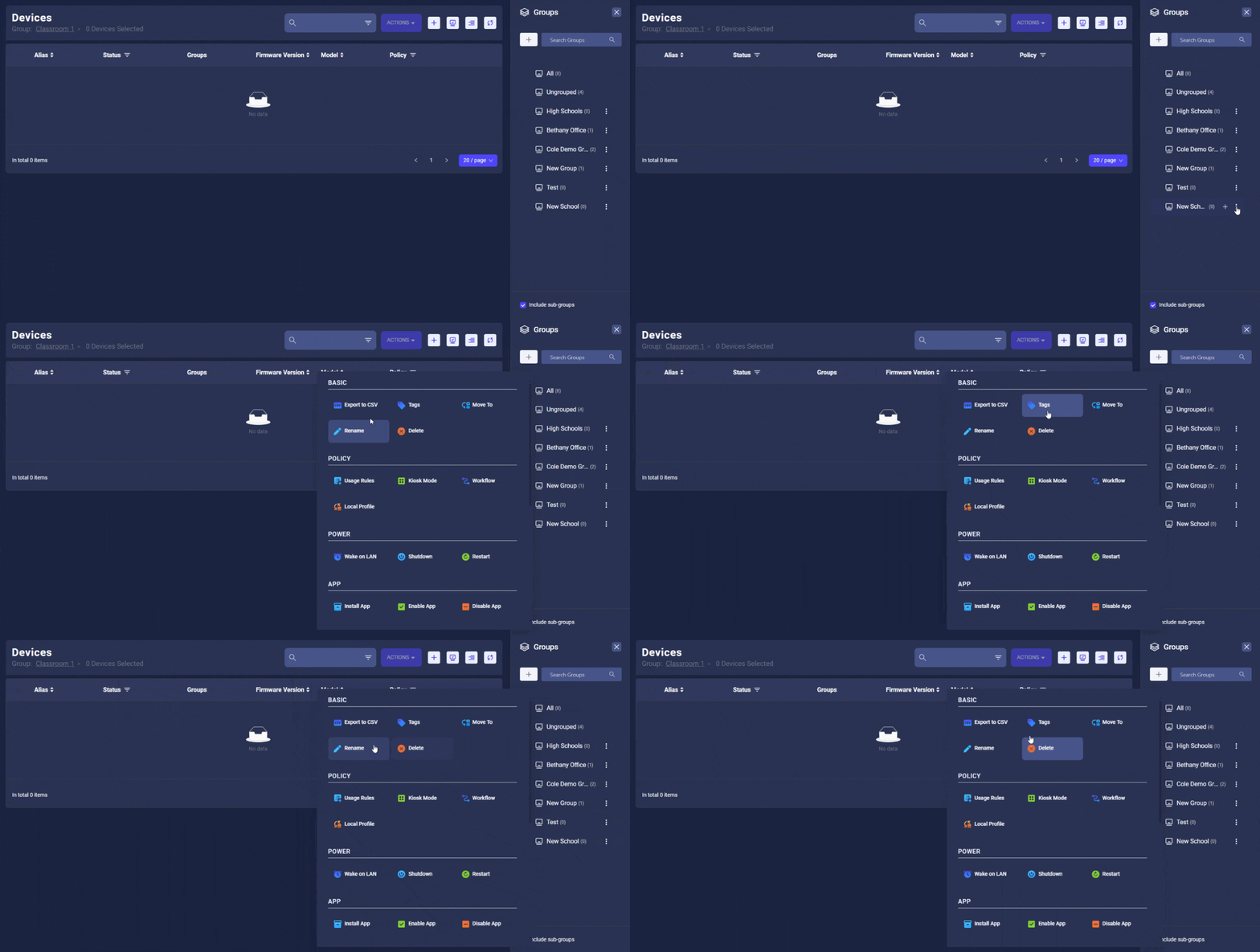
1. Once a group has been created, you can apply commands to the group by clicking the 3 dots next to it.
2. Use the Basic options to edit the group, manage assigned devices, update tags, or delete the group.
Subscribe to our Tech Notes - Newline Tech Notes and Firmware Updates (newline-interactive.com)
For additional questions, please contact support at 833-469-9520 or submit a ticket via our portal at: Submit a ticket : Newline Technical Services (freshdesk.com)