
Please refer to this article for getting started with Newline Display Management+.
If you need to execute a more advanced command or a script, or even apply commands that are not currently available on the NDM+ interface, using the “Remote Exec” command repository is the best option. Check the following links to get started:
Examples of when to use a workflow:
- Change the theme
- Change a setting not found within NDM
Workflows involve simulating touches to get the panels to manually perform specific functions. Most of the work in developing your work flow involves obtaining coordinates. This only needs to be completed on one panel. You'll then create the workflow in NDM+, and can push it to all panels that need the workflow.
- From the home screen, access the panel's settings
- Go to About Tablet
- Select the "Build number" option
- Tap on the Build number option multiple times until it says "you are now a developer"
- Go back to the main settings page
- Select the System Option and then "Developer options"
- Scroll down to the Input section, and enable Pointer location
- There should be X & Y Coordinates shown in the top left region depending on where you touch the display.
- In the NDM+ console, click Repositories on the left, then Workflow
- Click Add new at the bottom
- Name the workflow, optionally add a description
- Click the Commands button on the left
- Click Add Command
- Choose Remote execute
- Add Remote execute entries for each set of coordinates:
- Name - I recommend using something along the lines of Q series set PIN 1, then increase the number for every following remote execute entry
- Command - enter the word "input"
- Arguments - enter the word "tap" or "swipe" followed by the coordinates (2 sets of coordinates for swipe to ensure direction of swipe is known)
Example(s): taping one a specific coordinate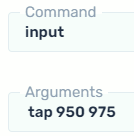
- All other settings can stay as default.
- Once all Remote execute entries are created for all of the coordinates, add each one to your workflow, then click Confirm at the bottom. You'll have a series of Remote exec commands in the workflow similar to this:
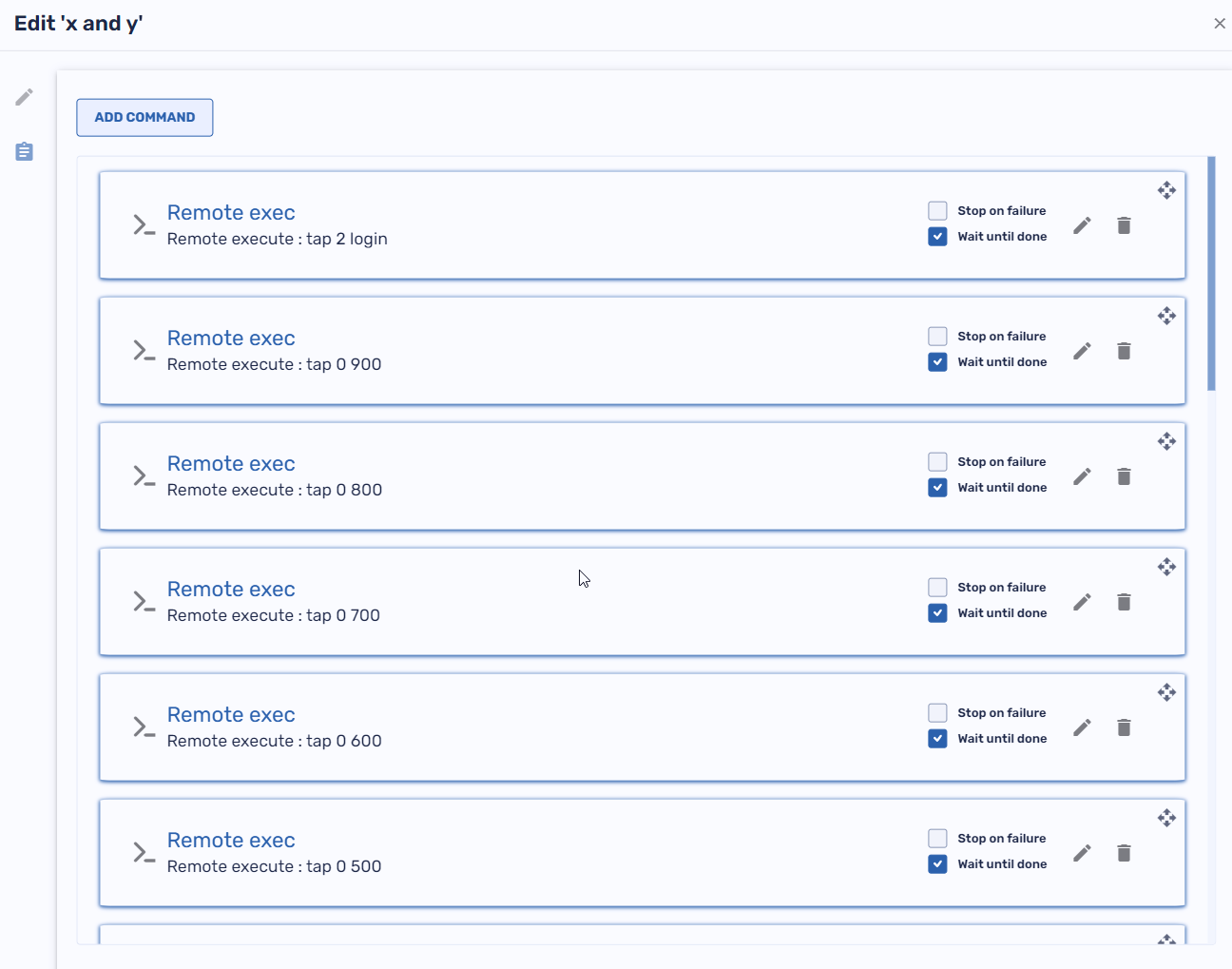
- Push the Workflow to the panels using the "Workflow" option at the top.
For additional questions, please contact support at 833-469-9520 or send an email to support@newline-interactive.com.